Introduction
Artificial Intelligence is rapidly becoming a native capability of the modern web browser. Instead of sending every prompt to a cloud-hosted Large Language Model (LLM), Chrome’s Built-in AI allows web applications to execute AI tasks directly on the user’s device using on-device models.
In this guide, we’ll walk through everything you need to get started with Chrome Built-in AI, including supported APIs, Chrome versions, hardware requirements, and how to enable the on-device language model.
What is Chrome Built-in AI?
Chrome Built-in AI is Google’s initiative to expose AI capabilities directly through the browser using standardized JavaScript APIs. Rather than integrating external AI SDKs or calling cloud APIs for common tasks, developers can access AI features such as text generation, summarization, translation, rewriting, proofreading, and language detection directly from the browser.
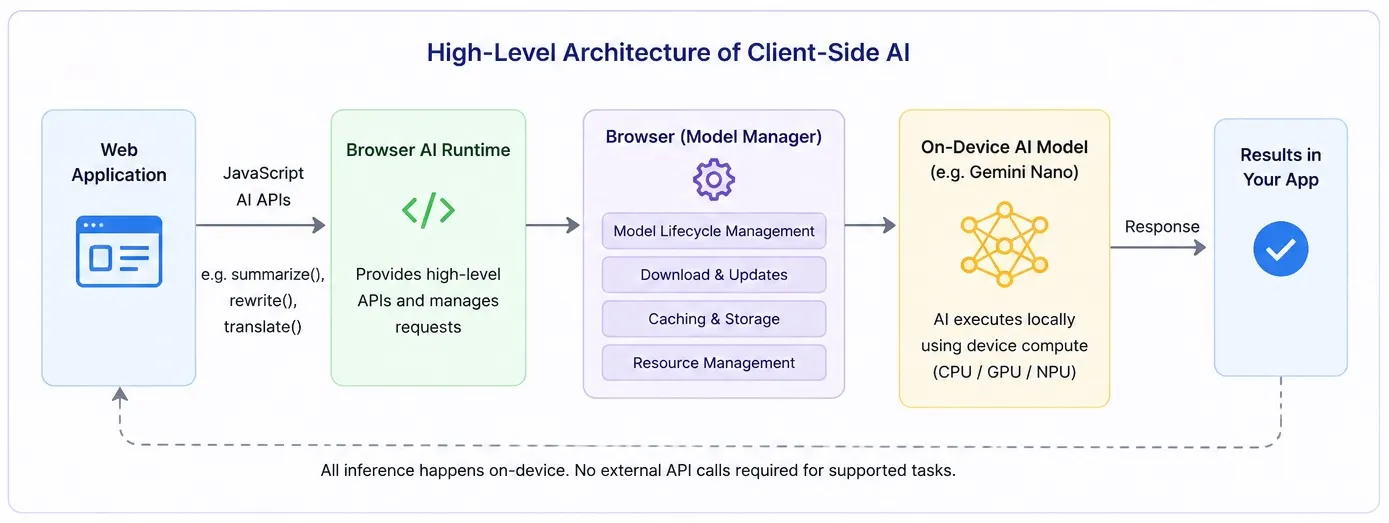
This article focuses on setting up and using Chrome Built-in AI. If you’re new to Browser AI or want to understand the underlying concepts, architecture, available APIs, and real-world use cases, I recommend reading my companion article: Client-Side AI: Running AI Models Directly in the Browser.
Hardware and Software Requirements
Before experimenting with Chrome Built-in AI, ensure your development environment meets the minimum requirements. Since AI inference runs locally, Chrome downloads and executes the required models directly on the user’s device.
| Requirement | Details |
|---|---|
| Operating System | Windows 10/11, macOS 13+, Linux, or ChromeOS (Chromebook Plus) |
| Browser | Google Chrome 138+ (latest Stable recommended). Some APIs require Developer Trial or Early Preview Program (EPP). |
| Storage | At least 22 GB of free disk space on the volume containing your Chrome profile to accommodate the on-device model download. |
| Hardware | Modern desktop or laptop capable of running on-device AI models using the CPU, GPU, or NPU. Performance improves on newer hardware. |
| Internet Connection | Required only for the initial AI model download. Once downloaded, supported AI tasks execute locally. |
| Mobile Support | No support at the time of writing. Chrome Built-in AI foundation model APIs are currently designed for desktop platforms. |
Unlike cloud-hosted AI services, Browser AI performs inference entirely on the user’s device. The first time an application calls a Built-in AI API, Chrome automatically downloads the required on-device model, caches it locally, and manages future updates without any developer intervention.
Browser AI APIs, browser compatibility, and hardware/software requirements are evolving rapidly. Always refer to the official Chrome documentation to verify the latest API availability, supported Chrome versions, and system requirements before implementing these features in production.
Built-in AI APIs Available in Chrome browser
Chrome offers several Built-in AI APIs for tasks such as prompting, summarization, writing, translation, and language detection. For a complete overview of each API, including descriptions, supported features, and links to the official documentation, refer to my Browser AI guide
| API | Purpose |
|---|---|
| Prompt API | General-purpose prompting |
| Summarizer API | Summarize long-form text |
| Writer API | Generate original content |
| Rewriter API | Rewrite existing text |
| Proofreader API | Grammar and spelling correction |
| Translator API | Translate between languages |
| Language Detector API | Detect the language of text |
Which AI Model Does Each API Use?
Not every API uses the same underlying model. Chrome currently distinguishes between a foundation language model and specialized expert models.
| API | Underlying Model |
|---|---|
| Prompt API | Foundation Language Model |
| Writer API | Foundation Language Model |
| Rewriter API | Foundation Language Model |
| Proofreader API | Foundation Language Model |
| Summarizer API | Foundation Language Model |
| Translator API | Expert Translation Model |
| Language Detector API | Expert Language Detection Model |
This allows Chrome to optimize different AI tasks using models specifically designed for those use cases.
Why separate Models?
Chrome uses two categories of on-device AI models: a general-purpose Foundation Language Model for broad language understanding, and smaller Specialized Expert Models that are optimized for specific tasks such as translation and language detection. This approach improves performance, reduces resource consumption, and delivers more accurate results for specialized use cases.
1. Foundation Language Model
A foundation language model is a general-purpose AI model trained on a wide variety of text and capable of performing many different language tasks without being built for a single purpose. Google currently uses an on-device version of Gemini Nano as its foundation language model. Refer to the table above to see which API’s are supported by the foundational model.
2. Specialized Expert Models
Instead of using one large model for everything, Chrome also includes smaller AI models trained for a single task. These are called expert models. Rather than understanding everything, they become extremely good at one job. For example, the
- Translator API - Chrome loads a translation model that has been specifically optimized for language translation.
- Language Detector API - Chrome loads a dedicated language detection model.
Why doesn’t Chrome use Gemini Nano for everything?
A general-purpose LLM can perform all these tasks. However,
- it’s larger
- consumes more RAM
- uses more battery
- takes longer
- is less optimized
Instead Chrome chooses the best tool for the job.
Chrome Version Support
Google is gradually rolling out its Built-in AI APIs, so not every API becomes available in the same Chrome release. Some APIs are already available in Chrome Stable, while others are still being evaluated through Developer Trials or the Early Preview Program (EPP). This is the status at the time of writing this article.
| AI API | Chrome Version |
|---|---|
| Prompt API | Chrome 138+ |
| Translator API | Chrome 138+ |
| Language Detector API | Chrome 138+ |
| Summarizer API | Chrome 138+ |
| Writer API | Developer Trial |
| Rewriter API | Developer Trial |
| Proofreader API | Early Preview Program (EPP) |
Always check the official Google Chrome Built-in AI documentation for the latest API availability and support status.
Enabling Browser AI in Chrome
Once Chrome is installed, enabling Browser AI only takes a few steps.
Step 1: Install a Supported Chrome Version
Install the latest version of Google Chrome or Chrome Canary if you’re testing preview features.
Step 2: Enable the On-Device Model
Open:
chrome://flagsLocate the flag:
#optimization-guide-on-device-modelEnable it.
For local development, you can also select:
Enabled BypassPerfRequirementif your development machine doesn’t meet all performance requirements. I selected this option for me personally.
Step 3: Enable the Prompt API
Open:
chrome://flags/#prompt-api-for-gemini-nanoEnable it.
Depending on your Chrome version, you may also find flags for other Built-in AI APIs.
Step 4: Restart Chrome
Restart the browser to apply the changes.
Step 5: Download the AI Model
The first time your application creates a Browser AI session, Chrome automatically checks whether the required model is installed.
If the model is not available, Chrome will:
- Download the model automatically
- Install it locally
- Cache it for future use
- Manage updates automatically
Developers never need to manually download or update AI models. See the code samples below to know how and when the model starts downloading.
Step 6: Verify the Installation
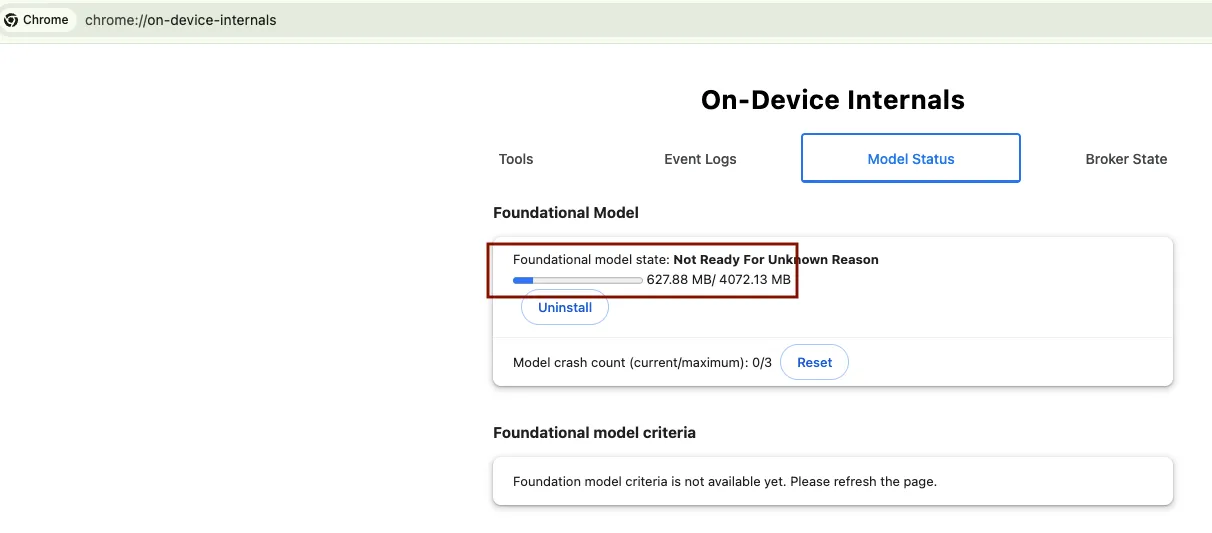
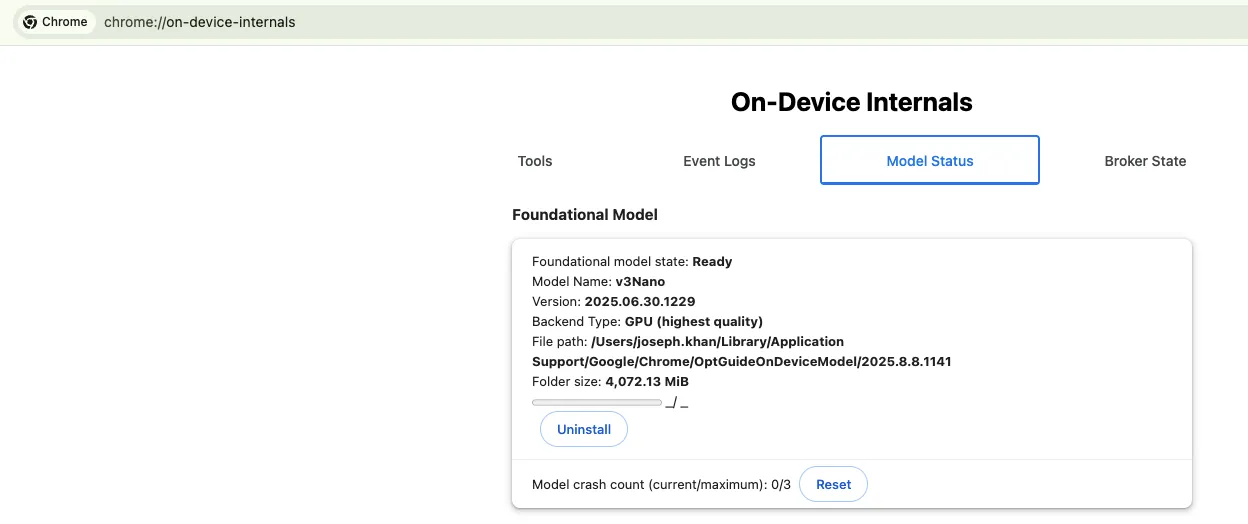
Chrome provides an internal diagnostics page that shows the status of on-device AI.
Open:
chrome://on-device-internalsThis page displays:
- Download progress - refer to image 1 below. You can see the model download in progress.
- Installed models - refer to image 2 below. You can see it has downloaded Gemini Nano model.
- Model versions - can be seen in image 2 below
- Current status - can be seen in image 2 below
It’s an excellent tool for debugging Browser AI during development.
When Does Chrome Download the Gemini Nano Model?
Let’s take an example of the Prompt API. It uses Chrome’s on-device foundation model, Gemini Nano. Although the API is built into Chrome, the model itself is downloaded separately. Chrome downloads the model the first time a website origin uses the Prompt API and creates a language model session.
In practical terms, the download is triggered when your application calls:
await LanguageModel.create();Before creating the session, you should first check whether the model is already available using LanguageModel.availability(). This helps you understand whether the model is ready, unavailable, or currently downloading. If the model is not yet downloaded, calling LanguageModel.create() can start the download and instantiate the language model session once ready.
1. Check Whether the Model Is Available
const availability = await LanguageModel.availability();

if (availability === "available") {
  console.log("Gemini Nano is already available locally.");
} else if (availability === "downloadable") {
  console.log("Gemini Nano needs to download to create a session");
} else if (availability === "downloading") {
  console.log("Gemini Nano is currently downloading.");
} else {
  console.log(`Current model status: ${availability}`);  // "unavailable"
}
2. Trigger the Model Download
// Calling LanguageModel.create() creates a Prompt API session.
//
// If Gemini Nano is not already available locally,
// Chrome triggers the on-device model download for this origin.
//
// Once downloaded, Chrome caches the model locally and manages
// future updates automatically.
const session = await LanguageModel.create();

const response = await session.prompt(
  "Explain Browser AI in one paragraph."
);

console.log(response);
3. Track Model Download Progress
Chrome also allows developers to monitor the model download progress using the monitor option.
const session = await LanguageModel.create({
  monitor(m) {
    m.addEventListener("downloadprogress", (event) => {
      console.log(`Downloaded ${event.loaded * 100}%`);
    });
  },
});

const response = await session.prompt(
  "Summarize the benefits of Client-Side AI."
);

console.log(response);
This is useful because the initial model download may take time depending on the user’s network connection, device, and available storage. For a better user experience, you should inform users when the model is downloading and show progress where possible.
Important Notes
LanguageModel.availability()only checks the current model availability.LanguageModel.create()is the call that creates the session and can trigger the Gemini Nano download.- The model is downloaded only once and reused afterward.
- Chrome caches the model locally and manages updates automatically.
- The initial download requires an unmetered internet connection.
- After the model is downloaded, supported Prompt API tasks can run locally without sending data to Google or any third party.
Browser AI Setup Checklist
Use this checklist to ensure your environment is ready.
- Install the latest version of Google Chrome.
- Enable the Built-in AI feature flags.
- Restart Chrome.
- Allow Chrome to download the required AI model.
- Verify the installation using
chrome://on-device-internals. - Build your first application using the Prompt API/Summarizer.
Tested Environment
The examples and setup instructions in this guide were tested on the following environment. Your experience may vary depending on your Chrome version, operating system, hardware, and the current rollout status of Chrome’s Built-in AI APIs.
| Component | Details |
|---|---|
| Chrome Version | Chrome 150.0.7871.47 |
| Operating System | macOS Sequoia 15.x |
| Device | Apple MacBook Pro M4 Pro |
| Browser AI APIs Tested | Prompt API, Summarizer API, Translator API, Language Detector API |
| AI Model | Gemini Nano (downloaded automatically by Chrome) |
| Internet | Required only for the initial model download |
| Date Tested | July 2026 |
What I Verified
All code examples in this article were executed and verified on a local development environment before publication.
| Feature | Status |
|---|---|
| Prompt API | ✅ Verified |
| Summarizer API | ✅ Verified |
| Translator API | ✅ Verified |
| Language Detector API | ✅ Verified |
| Automatic model download | ✅ Verified |
chrome://on-device-internals | ✅ Verified |
| Streaming responses | ✅ Verified |
| Offline inference after model download | ✅ Verified |
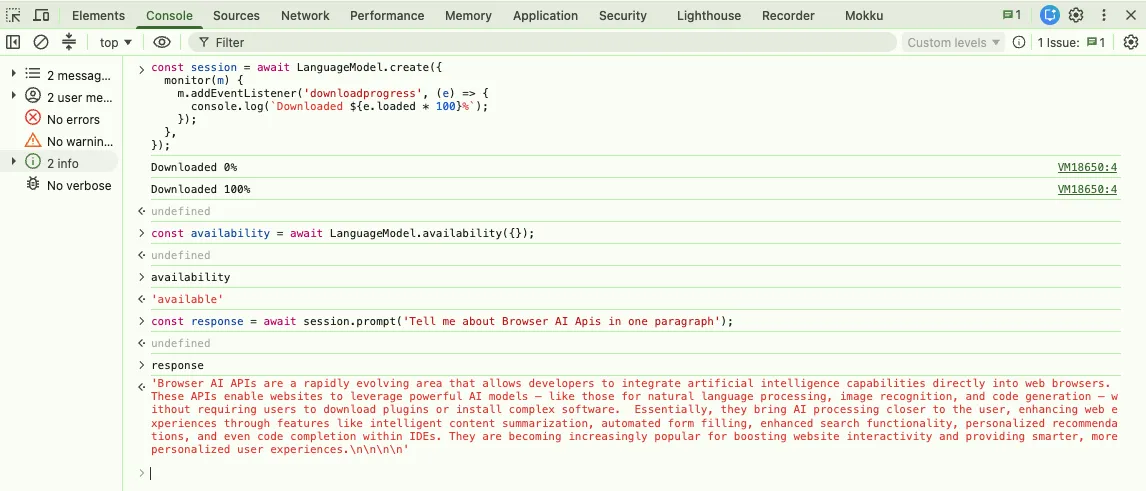
Here’s a screenshot of my browser console where I tried the Prompt API after downloading the Gemini Nano model locally in my Chrome version.
Final Thoughts
Chrome Built-in AI marks an important shift in how developers build intelligent web applications. By moving AI inference directly into the browser, developers can create experiences that are faster, more private, and less dependent on cloud infrastructure.
Although Browser AI is still evolving, Google continues expanding the available APIs and improving support across Chrome releases. As more browser vendors adopt similar capabilities and standards emerge, Client-Side AI is expected to become a fundamental part of the modern web platform.
If you’re building AI-powered web applications today, now is the ideal time to start experimenting with Chrome Built-in AI and prepare for the next generation of browser-native AI experiences.
What’s Next?
Congratulations! You now have everything you need to set up Chrome Browser AI and start experimenting with Chrome’s Built-in AI APIs. You’ve learned about the hardware and software requirements, supported APIs, Chrome version compatibility, enabling the required browser flags, and how Chrome automatically downloads and manages the on-device AI model.
In the next article of this series, we’ll look into building AI-Powered Web Applications Using Browser AI APIs. You’ll learn how to create a language model session, interact with the on-device Gemini Nano model, handle streaming responses, and build practical AI-powered features that run directly inside the browser.
References
- Client-Side AI: Running AI Models Directly in the Browser (The Future of Web Apps)
- What is Built-in AI?
- Built-in Chrome Browser AI APIs
- Explainer for the Prompt API
- [blink-dev] Intent to Ship: Prompt API
- Prompt API Platform Status
- Translator and Language Detector APIs
If you enjoyed this article, you may also like: